MystaJoneS

If you're not making mistakes, then you're not doing anything.

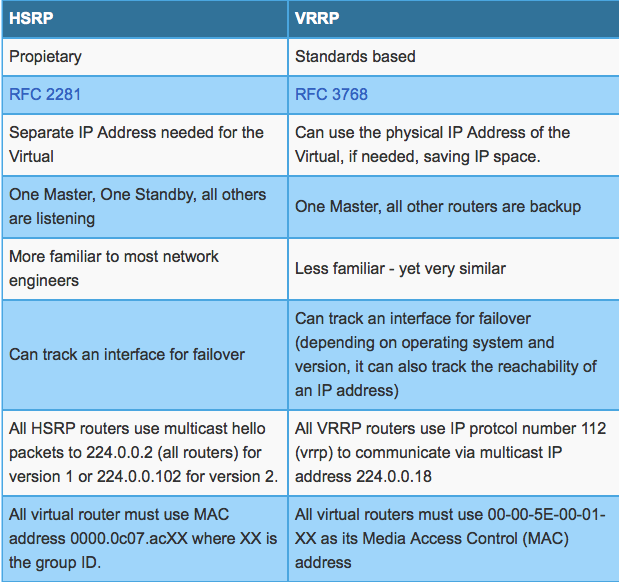
  • High availability gateways between multiple routers.  A few options to choose from are typically HSRP (Hot Standby Routing Protocol) more common to our Cisco friends, or the more widely used standards based VRRP (Virtual Route Redundancy Protocol), of course there’s GLBP too but i’ll leave that one for a rainy day, all of which are FHRP (First Hop Routing Protocols).

    Ultimately, what you want is for a router to fail and a standby router to become the active gateway, and forward packets to the next hop right?

    Screen Shot 2015-05-31 at 9.55.47 am

    HSRP Configuration Example

    R1(config)# interface GigE 0/1
    R1(config-if)# ip address 10.1.1.2 255.255.255.0
    R1(config-if)# standby 1 ip 10.1.1.1
    R1(config-if)# standby 1 priority 200
    R1(config-if)# standby 1 preempt

    R2(config-if)# ip address 10.1.1.3 255.255.255.0
    R2(config-if)# standby 1 ip 10.1.1.1
    R2(config-if)# standby 1 preempt

    VRRP Configuration Example

    R1(config)# interface GigE 0/1
    R1(config-if)# ip address 10.1.1.2 255.255.255.0
    R1(config-if)# vrrp 1 ip 10.1.1.1
    R1(config-if)# vrrp 1 priority 110

    R2(config)# interface GigE 0/1
    R2(config-if)# ip address 10.1.1.3 255.255.255.0
    R2(config-if)# vrrp 1 ip 10.1.1.1

    + ,
  • Useful Quick Link

    + ,
  • Inconsistent echo-reply from devices connected via VPC to Nexus 9300 while pinging from the Nexus exec prompt.

    With some of the testing I receive normal response when pinging from one Nexus,  but no response when pinging from the other.  In another test I receive a normal response to one Nexus, and duplicate replys to the other

    HNINXP12# ping 172.22.36.1 source 172.22.82.3 vrf corp
    PING 172.22.36.1 (172.22.36.1) from 172.22.82.3: 56 data bytes
    64 bytes from 172.22.36.1: icmp_seq=0 ttl=251 time=3.249 ms
    64 bytes from 172.22.36.1: icmp_seq=0 ttl=251 time=3.643 ms (DUP!)
    64 bytes from 172.22.36.1: icmp_seq=1 ttl=251 time=3.213 ms
    64 bytes from 172.22.36.1: icmp_seq=1 ttl=251 time=3.563 ms (DUP!)

    “When you enable this feature (peer-gateway), Cisco NX-OS automatically disables IP redirects on all interface VLANs mapped over a vPC VLAN to avoid generation of IP redirect messages for packets switched through the peer gateway router.”

    You will need to manually add “no ip redirects” on each VPC vlan interface to prevent duplicate pings.

    +
  • Here’s a little something to help my fellow users out, in extending the disk allocation of Cisco Prime. Note; this is not something you will find in any Cisco documentation anywhere!  It is aimed at stopping the /opt file system from filling up.  Which would never have occurred had the Storage Guy allocated the correct amount in the first instance (as requested) in-line with the recommended specification that was provided to him, rather that what he believed he could spare.  But that’s ok – he’s not the one fixing it up for the third time………grrrrrrrr!!!!

    We have since moved on and I’ve been allocated some disk space (thanks for that).  Which now just leaves the rest of the work, so here goes:

    From the Prime Infrastructure 2.2 shell login as root and run the following:

    ade # fdisk /dev/sda

    The number of cylinders for this disk is set to 118792.
    There is nothing wrong with that, but this is larger than 1024,
    and could in certain setups cause problems with:
    1) software that runs at boot time (e.g., old versions of LILO)
    2) booting and partitioning software from other OSs
    (e.g., DOS FDISK, OS/2 FDISK)

    Command (m for help): p

    Disk /dev/sda: 977.1 GB, 977105059840 bytes
    255 heads, 63 sectors/track, 118792 cylinders
    Units = cylinders of 16065 * 512 = 8225280 bytes

    Device Boot Start End Blocks Id System
    /dev/sda1 * 1 64 512000 83 Linux
    /dev/sda2 64 77 102400 83 Linux
    /dev/sda3 77 38245 306584576 8e Linux LVM

    Command (m for help): n
    Command action
    e extended
    p primary partition (1-4)

    p

    Selected partition 4

    First cylinder (38245-118792, default 38245):
    Using default value 38245
    Last cylinder or +size or +sizeM or +sizeK (38245-118792, default 118792):
    Using default value 118792

    Running fdisk we should see the additional 600 Gb of disk space available. Now we create an additional primary partition, being number 4 or ‘/dev/sda4’, and by default this partition will created at last sector/track of the previous partition being 38245 and extend to the maxium available.

    Taking a look at the partition table we can see the following has been allocated:

    /dev/sda4 38245 118792 646996740 83 Linux

    From here we can to tag this 8e to be a Linux LVM Filesystem, verify and write to the partition table 🙂 then reboot.

    Post reboot the partition should be usable and we can use the pvcreate to create the new volume.

    ade # pvdisplay /dev/sda4
    “/dev/sda4” is a new physical volume of “617.02 GB”
    — NEW Physical volume —
    PV Name /dev/sda4
    VG Name
    PV Size 617.02 GB
    Allocatable NO
    PE Size (KByte) 0
    Total PE 0
    Free PE 0
    Allocated PE 0
    PV UUID MHCoKt-mfe4-Yzp3-HSbB-NIQU-l1T4-NYX67c

    ade # pvcreate /dev/sda4

    Writing physical volume data to disk “/dev/sda4”
    Physical volume “/dev/sda4” successfully created

    pvcreate is used to create the new physical volume and vgdisplay will still show the old 292.38 GB because it’s not added yet to smosvg.

    ade # vgdisplay

    — Volume group —
    VG Name smosvg
    System ID
    Format lvm2
    Metadata Areas 1
    Metadata Sequence No 12
    VG Access read/write
    VG Status resizable
    MAX LV 0
    Cur LV 11
    Open LV 11
    Max PV 0
    Cur PV 1
    Act PV 1
    VG Size 292.38 GB
    PE Size 32.00 MB
    Total PE 9356
    Alloc PE / Size 9356 / 292.38 GB
    Free PE / Size 0 / 0
    VG UUID ORncbY-QHjO-TMX0-A9L2-RFdw-8FFr-LoYJHT

    pvdisplay shows two volumes still:

    ade # pvdisplay

    — Physical volume —
    PV Name /dev/sda3
    VG Name smosvg
    PV Size 292.38 GB / not usable 7.00 MB
    Allocatable yes (but full)
    PE Size (KByte) 32768
    Total PE 9356
    Free PE 0
    Allocated PE 9356
    PV UUID RJzYZ4-7DRk-Nq2C-jLSA-mw3V-NGgX-R47L2M

    “/dev/sda4” is a new physical volume of “617.02 GB”
    — NEW Physical volume —
    PV Name /dev/sda4
    VG Name
    PV Size 617.02 GB
    Allocatable NO
    PE Size (KByte) 0
    Total PE 0
    Free PE 0
    Allocated PE 0
    PV UUID MHCoKt-mfe4-Yzp3-HSbB-NIQU-l1T4-NYX67c

    Here we are going to add the volume to /opt then extend it using resize2fs so that kernel knows the size has increased but first we need to do some other funky magic:

    ade # vgextend smosvg /dev/sda4

    Volume group “smosvg” successfully extended

    ade # lvextend /dev/mapper/smosvg-optvol /dev/sda4

    Extending logical volume optvol to 823.22 GB
    Logical volume optvol successfully resized

    ade # resize2fs /dev/mapper/smosvg-optvol

    resize2fs 1.39 (29-May-2006)
    Filesystem at /dev/mapper/smosvg-optvol is mounted on /opt; on-line r
    Performing an on-line resize of /dev/mapper/smosvg-optvol to 21580185
    The filesystem on /dev/mapper/smosvg-optvol is now 215801856 blocks long.

    Done! 😛
    + ,
  • Basically there’s two options that i like to use when connecting to Cisco’s Integrated Management Console (CIMC).  Via the router connected to an address within the allocated subnet.  Although using this method you must add the host specific route to the ucse4/0 interface to provide access to the UCS-E module.

    interface ucse4/0
    description UCS-E Series CIMC Link
    no ip unnumbered GigabitEthernet0/0
    imc ip address 172.22.39.70 255.255.255.248 default-gateway 172.22.39.65
    imc access-port shared-lom
    !
    ip route 172.22.39.70 255.255.255.255 ucse4/0

    Alternatively, to manage the CIMC from your Data-vLAN add the below device configuration and use the dedicated console mode to provide access to the CIMC alone.  Ensure you put the console into the correct vLAN for management, in this case I’ll be using vLAN-901.

    interface ucse4/0
    description UCS-E Series CIMC Link
    no ip unnumbered GigabitEthernet0/0
    imc ip address 172.22.36.2 255.255.255.0 default-gateway 172.22.36.1
    imc access-port dedicated console
    end
    !
    Supporting a vMware configuration you will need to use x2 GigabitEthernet ports for redundancy / fail-over. These are GE2 & G3 (GE1 is used for the Console) The x2 ports should be added to the Data-vLAN, and NIC teamed using VMware.

    Summary of ports:

    GigabitEthernet1/0/11 >> GE2
    GigabitEthernet1/0/12 >> GE3
    GigabitEthernet1/0/13 >> GE1 (Console Port)

    + ,
  • I recently ran into “The maximum number of user sessions has been reached” error when working on a new Cisco UCS-E160D.

    To fix things you can SSH to the CIMC address and run:

    show user-session

    To change to a particular session from the resulting list, note the session index numbers from the user-session list and run:

    scope user-session sessionindex

    To end the session you just switched to, run:

    terminate

    To exit the scope of that session, run:

    exit

    + ,
  • This is a pretty basic WCCP-GRE configuration that i used to get my vWAAS lab up and running.

    The WCCP GRE redirect method establishes a dynamic tunnel, without any real tunnel configuration for it to work and handled entirely by the WCCP process.

    vWAAS Configs

    Router config:

    ip wccp version 2
    ip wccp source-interface Loopback0
    ip wccp 61 group-list 1
    ip wccp 62 group-list 1
    !
    interface Loopback0
    ip address 172.22.39.1 255.255.255.255
    !
    interface GigabitEthernet0/0
    description [LAN Interface]
    ip address 172.22.39.65 255.255.255.248
    ip wccp 61 redirect in
    duplex auto
    speed auto
    !
    interface GigabitEthernet0/1
    description [WAN Interface]
    ip address 10.10.10.2 255.255.255.0
    ip wccp 62 redirect in
    duplex full
    speed 100

    vWAAS Config:

    wccp router-list 1 172.22.39.1
    wccp tcp-promiscuous service-pair 61 62
    router-list-num 1
    redirect-method gre
    egress-method wccp-gre
    enable

    + , ,
  • Once the VM (.ova) file has been deployed (version Cisco vWAAS-750-5.4.1-b34.ova in this case) on to the UCS-E Server.  We can configure the vWAAS settings.  You can do this either by running through the ‘setup’ command, or use the values from below.

    From the vCentre client, choose the console tab and log in to the vWAAS Console.  The default is userid and password are admin/default.

    IP and Netmask
    vWAAS(config)# interface virtual 1/0
    vWAAS(config-if)# ip address 172.22.36.2 255.255.255.0
    vWAAS(config-if)# exit
    Default gateway using the ip command:
    vWAAS(config)# ip default-gateway 172.22.36.1
    vWAAS(config)# ip primary-interface virtual 1/0
    Ping the IP addresses of the default gateway and Central Manager to verify they can be reached before continuing to the next step then add the Enterprise license using the license command:
    vWAAS# license add Enterprise
    Add the Central Manager address using the central-manager command:
    vWAAS(config)# central-manager address 172.22.x.x
    Enable CMS to register with the Central Manager using the cms command:
    vWAAS(config)# cms enable
    Once registered with the CM, then your device will appear in the console under devices.
    The versions will need to be the same.
    + ,
  • You aren’t rich until you have something that money can’t buy.

    +
  • As part of a vWAAS deployment on a 3945-ISR-G2, my objective was to access the UCS-E server, initially the CIMC interface for the install of ESXi and then vWAAS, via the /29 address i’d allocated.

    Here’s a much nicer look at that configuration.

    interface GigabitEthernet0/0
     description [Link to 3850]
     ip address 172.22.39.65 255.255.255.248
    
    interface ucse 4/0
     description [UCS-E Series CIMC Link]
     ip unnumbered GigabitEthernet0/0
     imc ip address 172.22.39.67 255.255.255.248 default-gateway 172.22.39.65
     imc access-port shared-lom console
    
    interface ucse4/1
     switchport mode trunk
    
    ip route 172.22.39.67 255.255.255.255 ucse4/0
    + , ,