MystaJoneS

If you're not making mistakes, then you're not doing anything.

  • Basically there’s two options that i like to use when connecting to Cisco’s Integrated Management Console (CIMC).  Via the router connected to an address within the allocated subnet.  Although using this method you must add the host specific route to the ucse4/0 interface to provide access to the UCS-E module.

    interface ucse4/0
    description UCS-E Series CIMC Link
    no ip unnumbered GigabitEthernet0/0
    imc ip address 172.22.39.70 255.255.255.248 default-gateway 172.22.39.65
    imc access-port shared-lom
    !
    ip route 172.22.39.70 255.255.255.255 ucse4/0

    Alternatively, to manage the CIMC from your Data-vLAN add the below device configuration and use the dedicated console mode to provide access to the CIMC alone.  Ensure you put the console into the correct vLAN for management, in this case I’ll be using vLAN-901.

    interface ucse4/0
    description UCS-E Series CIMC Link
    no ip unnumbered GigabitEthernet0/0
    imc ip address 172.22.36.2 255.255.255.0 default-gateway 172.22.36.1
    imc access-port dedicated console
    end
    !
    Supporting a vMware configuration you will need to use x2 GigabitEthernet ports for redundancy / fail-over. These are GE2 & G3 (GE1 is used for the Console) The x2 ports should be added to the Data-vLAN, and NIC teamed using VMware.

    Summary of ports:

    GigabitEthernet1/0/11 >> GE2
    GigabitEthernet1/0/12 >> GE3
    GigabitEthernet1/0/13 >> GE1 (Console Port)

    + ,
  • I recently ran into “The maximum number of user sessions has been reached” error when working on a new Cisco UCS-E160D.

    To fix things you can SSH to the CIMC address and run:

    show user-session

    To change to a particular session from the resulting list, note the session index numbers from the user-session list and run:

    scope user-session sessionindex

    To end the session you just switched to, run:

    terminate

    To exit the scope of that session, run:

    exit

    + ,
  • This is a pretty basic WCCP-GRE configuration that i used to get my vWAAS lab up and running.

    The WCCP GRE redirect method establishes a dynamic tunnel, without any real tunnel configuration for it to work and handled entirely by the WCCP process.

    vWAAS Configs

    Router config:

    ip wccp version 2
    ip wccp source-interface Loopback0
    ip wccp 61 group-list 1
    ip wccp 62 group-list 1
    !
    interface Loopback0
    ip address 172.22.39.1 255.255.255.255
    !
    interface GigabitEthernet0/0
    description [LAN Interface]
    ip address 172.22.39.65 255.255.255.248
    ip wccp 61 redirect in
    duplex auto
    speed auto
    !
    interface GigabitEthernet0/1
    description [WAN Interface]
    ip address 10.10.10.2 255.255.255.0
    ip wccp 62 redirect in
    duplex full
    speed 100

    vWAAS Config:

    wccp router-list 1 172.22.39.1
    wccp tcp-promiscuous service-pair 61 62
    router-list-num 1
    redirect-method gre
    egress-method wccp-gre
    enable

    + , ,
  • Once the VM (.ova) file has been deployed (version Cisco vWAAS-750-5.4.1-b34.ova in this case) on to the UCS-E Server.  We can configure the vWAAS settings.  You can do this either by running through the ‘setup’ command, or use the values from below.

    From the vCentre client, choose the console tab and log in to the vWAAS Console.  The default is userid and password are admin/default.

    IP and Netmask
    vWAAS(config)# interface virtual 1/0
    vWAAS(config-if)# ip address 172.22.36.2 255.255.255.0
    vWAAS(config-if)# exit
    Default gateway using the ip command:
    vWAAS(config)# ip default-gateway 172.22.36.1
    vWAAS(config)# ip primary-interface virtual 1/0
    Ping the IP addresses of the default gateway and Central Manager to verify they can be reached before continuing to the next step then add the Enterprise license using the license command:
    vWAAS# license add Enterprise
    Add the Central Manager address using the central-manager command:
    vWAAS(config)# central-manager address 172.22.x.x
    Enable CMS to register with the Central Manager using the cms command:
    vWAAS(config)# cms enable
    Once registered with the CM, then your device will appear in the console under devices.
    The versions will need to be the same.
    + ,
  • You aren’t rich until you have something that money can’t buy.

    +
  • As part of a vWAAS deployment on a 3945-ISR-G2, my objective was to access the UCS-E server, initially the CIMC interface for the install of ESXi and then vWAAS, via the /29 address i’d allocated.

    Here’s a much nicer look at that configuration.

    interface GigabitEthernet0/0
     description [Link to 3850]
     ip address 172.22.39.65 255.255.255.248
    
    interface ucse 4/0
     description [UCS-E Series CIMC Link]
     ip unnumbered GigabitEthernet0/0
     imc ip address 172.22.39.67 255.255.255.248 default-gateway 172.22.39.65
     imc access-port shared-lom console
    
    interface ucse4/1
     switchport mode trunk
    
    ip route 172.22.39.67 255.255.255.255 ucse4/0
    + , ,
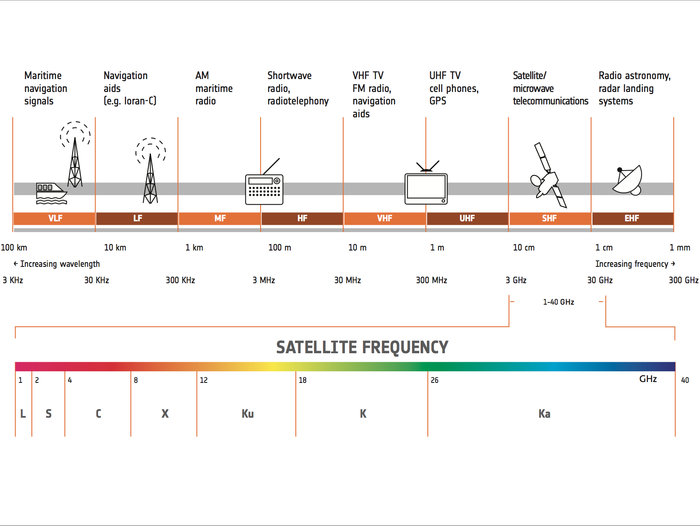
  • Satellite_frequency_bands_node_full_image_2-2

    + ,
  • Some rather useful documentation from the boys at Cisco, after some head bashing with these 9K configurations.

    vxlan-evpn

    +